
Your first chat
Once Browy is installed and signed in, click the Browy icon to open the side panel. Try one of these.
”Summarize this page” vision
Section titled “”Summarize this page” ”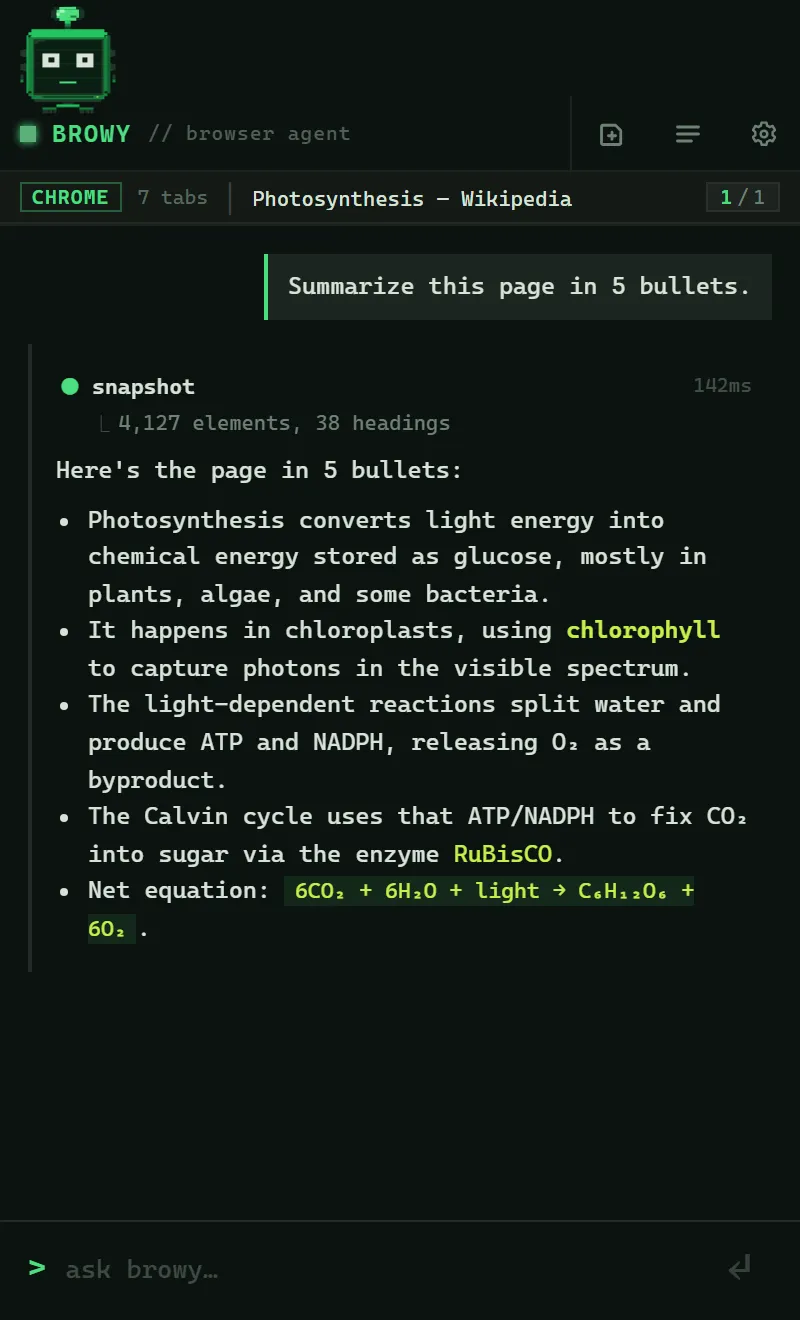
inspect_page call, then a streamed answer.Open a long article. In the side panel:
Summarize this page in 5 bullets.
The agent calls its inspect_page tool to grab the active tab’s accessibility
tree (the same one screen readers use), passes it to the model, and
streams the answer back into the panel.
”Fill out this form for me” actions
Section titled “”Fill out this form for me” ”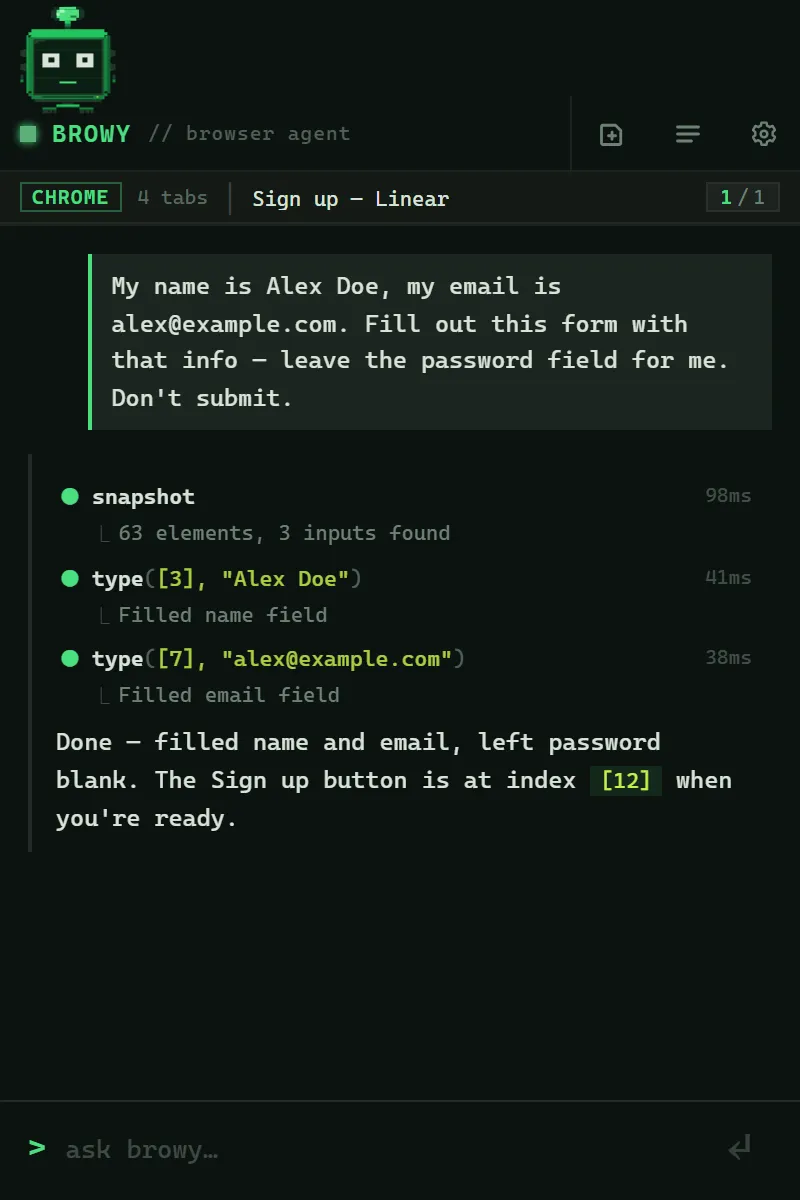
Open a form (sign-up, survey, settings page) and tell Browy what to enter:
My name is Alex Doe, my email is alex@example.com. Fill out this form with that info, leave the password field for me, and don’t submit.
The agent clicks each field by its accessibility index, types the value, and stops before submit so you can review.
”Find the cheapest flight” multi-step
Section titled “”Find the cheapest flight” ”Open google.com:
Search for flights from SFO to JFK on the 15th, sort by price, and tell me the cheapest one.
The agent navigates, types the query, clicks through to the results page, reads what’s there, and reports back.
”Inspect the network” devtools
Section titled “”Inspect the network” ”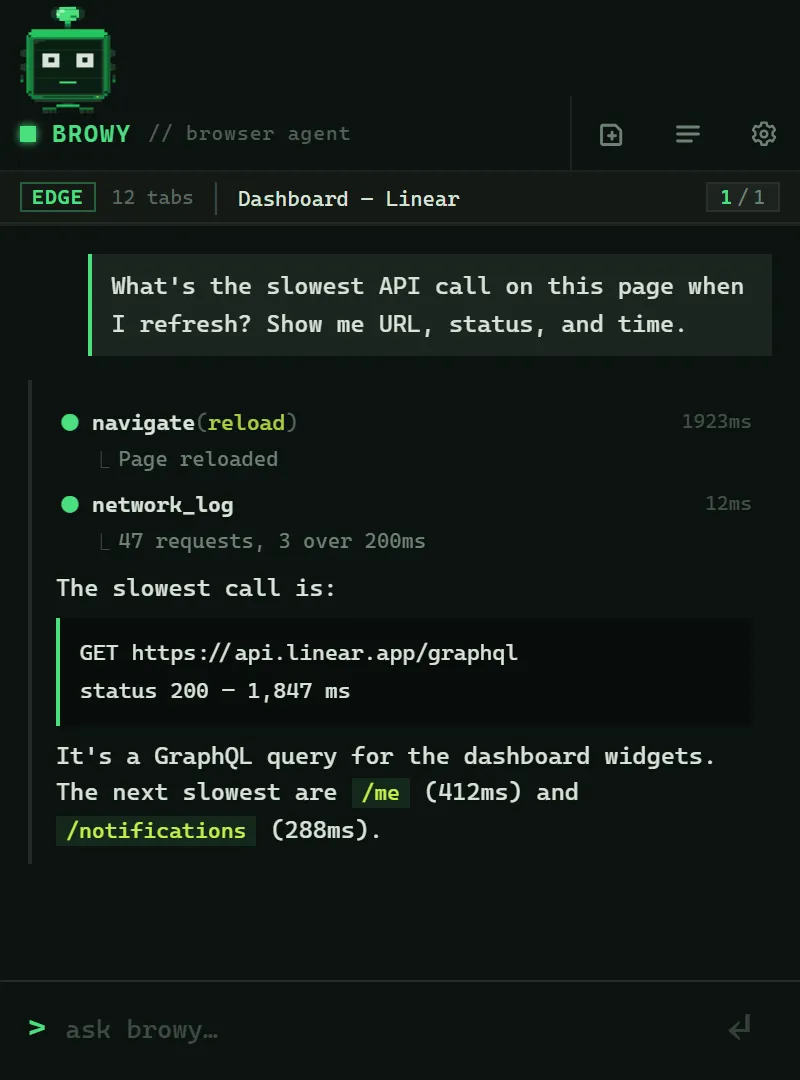
Open any web app:
What’s the slowest API call on this page when I refresh? Show me the URL, status code, and time.
The agent reads the network log via the Chrome DevTools Protocol and answers without making you open DevTools.
”Run this in the page” evaluate_js
Section titled “”Run this in the page” ”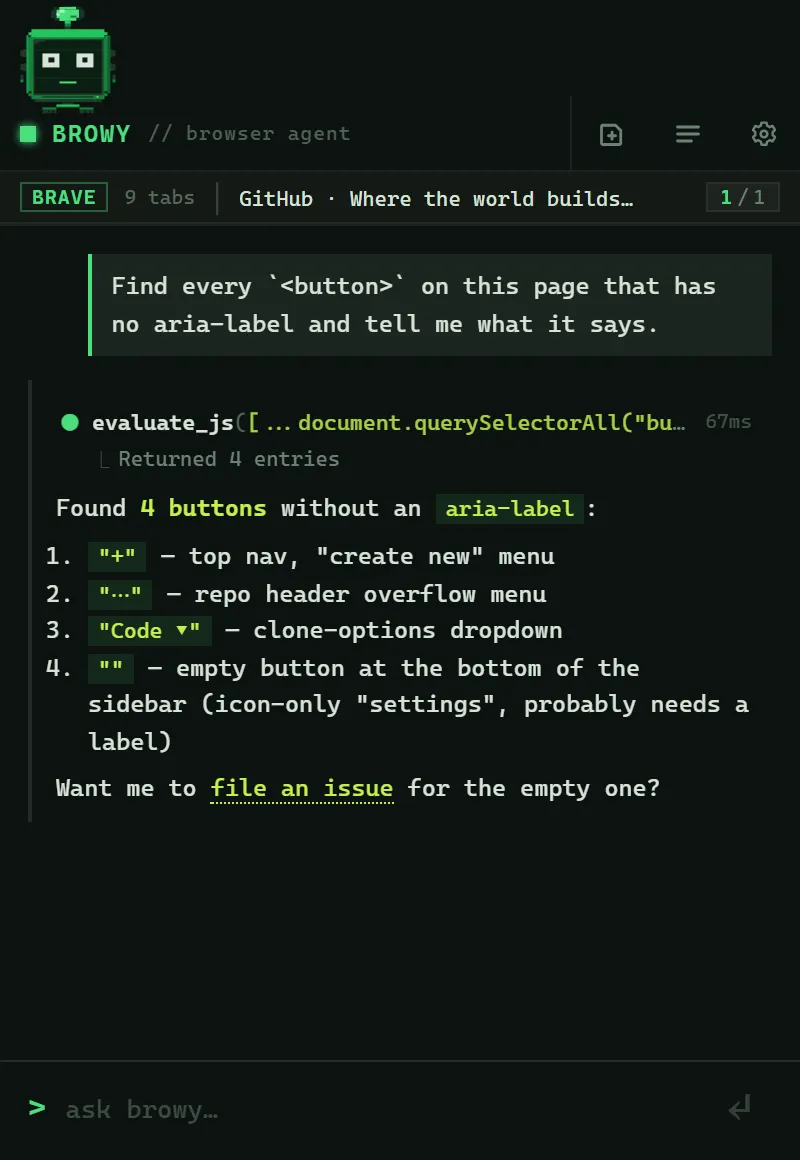
await works.For deeper inspection, the agent can run JavaScript directly in the page:
Find every
<button>on the page that has noaria-labeland tell me what it says.
evaluate_js runs your request as JS in the page and returns the result.
Toolbar
Section titled “Toolbar”The side panel’s titlebar (top right) hosts four controls:
| Button | What it does |
|---|---|
| Stop (red ■) | Cancel the in-flight agent turn. Same as Esc. |
| New chat | Save the current conversation to history and start fresh. |
| Chats | Open the past-chats overlay, a searchable list of every prior session, with delete + click-to-resume. |
| Settings | Opens the extension Options page (model picker, tool toggles, authentication, diagnostics). |
The status bar underneath shows the active browser, tab title, and an
N/M chip showing connected vs. installed browsers. Click Settings
to launch a browser that’s installed but not yet connected.
| Key | Action |
|---|---|
Enter | Send the message |
Shift+Enter | Newline in the prompt |
Esc | Cancel the in-flight turn |
The prompt auto-grows as you type, supports multi-line input, and renders Markdown in the agent’s replies (code blocks, lists, links, tables).
During a turn
Section titled “During a turn”- Streaming text appears live as the model generates it.
- Tool calls render as inline cards (
▸ click_index { index: 14 }). Click to expand and see arguments and result. Failed tool calls are surfaced with their error. - Reasoning (when the model emits it) shows in a dim block above the answer.
- Auth errors surface an inline “Sign in to GitHub Copilot” button, so you don’t need to dig into Settings.
If the native host disconnects, a banner at the top of the panel offers a one-click recheck (and tells you how to install the host if it’s missing).
Past chats
Section titled “Past chats”Each conversation is saved to chrome.storage.local with its title,
preview, and timestamp. Open the Chats overlay to:
- Filter by title or preview text
- Click a row to resume (the agent re-binds to that session id)
- Delete (×) to remove a conversation from history
- + new chat to start a fresh one
Chats are local to your browser profile and never leave your machine.